
Schedule An Automation Using Shortcuts
Use the Shortcuts app with a time-of-day trigger to run a Health Auto Export automation on a schedule.
Last updated: August 23, 2026
On this page
Schedule An Automation Using Shortcuts
Use the Shortcuts app with a time-of-day trigger to run a Health Auto Export automation on a schedule. Because iOS does not allow apps to run at an exact time in the background, using Shortcuts is a more predictable way to trigger an export at a chosen time (for example, every morning after you wake up).
Important: Your device must be unlocked when the shortcut runs at the scheduled time in order to access health data. Attempting to access health data while iPhone is locked results in an error.
Overview
Health Auto Export provides a Run Automation action for Shortcuts. Build a shortcut that uses this action, then create a personal automation with a Time of Day (or At Time) trigger that runs that shortcut at a specific time. When the shortcut runs, it triggers the selected automation, which then exports your health data according to that automation’s settings.
This is different from Schedule Reminders in Health Auto Export. A reminder only asks you to unlock and open the app; it does not run the automation. Open & Sync on the reminder requests a run after the app opens. A Shortcuts time trigger asks Shortcuts to run the automation directly. Both still require an unlocked device to read Apple Health data.
Benefits:
- Run an automation at a chosen time (e.g. daily at 8:00 AM)
- Combine with other shortcuts if needed
- Shortcuts can run the action when Health Auto Export isn’t open (your device still must be unlocked to access health data)
- More predictable than relying only on background sync
Prerequisites
- Health Auto Export installed with at least one automation created and configured.
- Shortcuts app (built into iOS).
Build A Shortcut
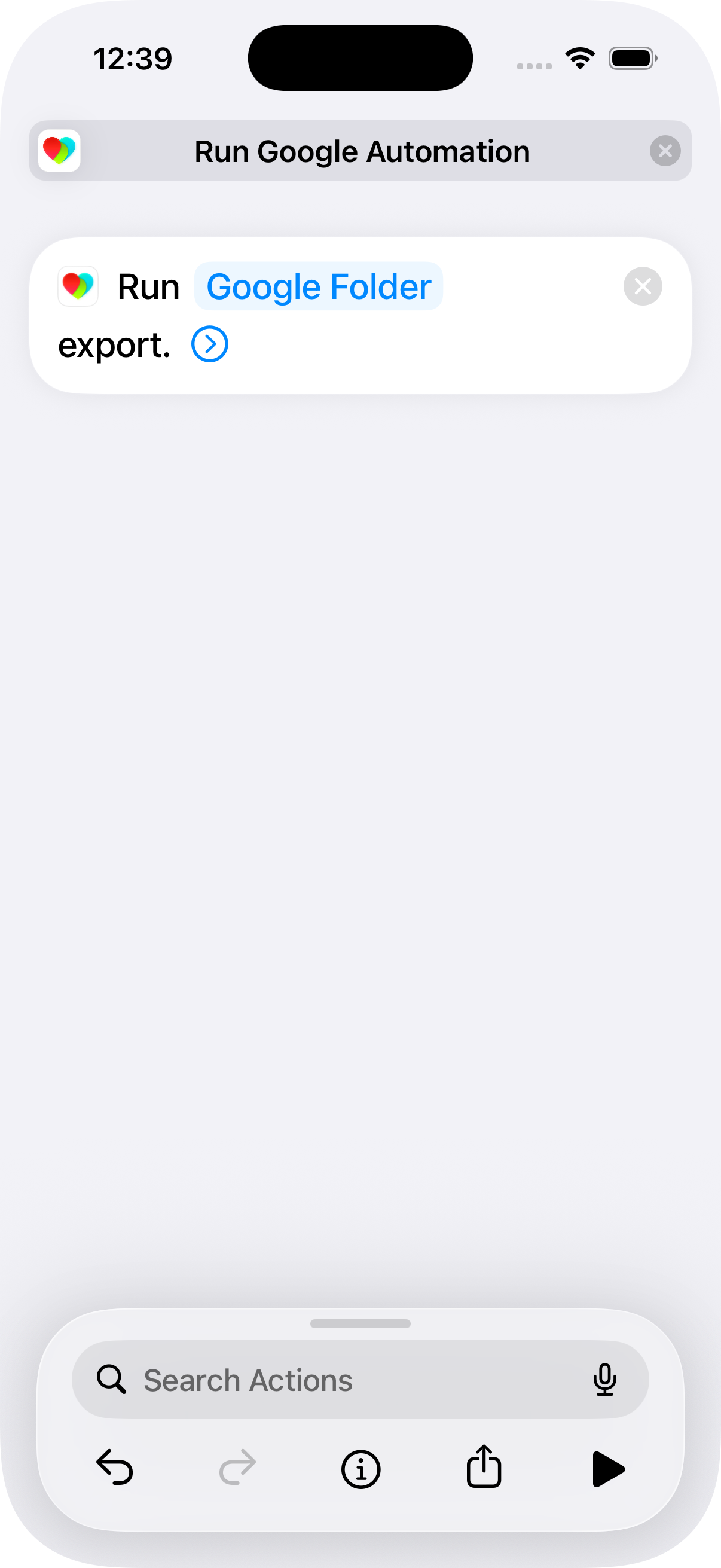
- Open the Shortcuts app and select the Shortcuts tab (not Automation).
- Tap the + button to create a new shortcut.
- Search for Auto Export.
- Select the Run Automation action.
- Tap the action’s selection field to choose which of your in-app automations this shortcut will run.
- Give the shortcut a suitable name before saving.
Configuration
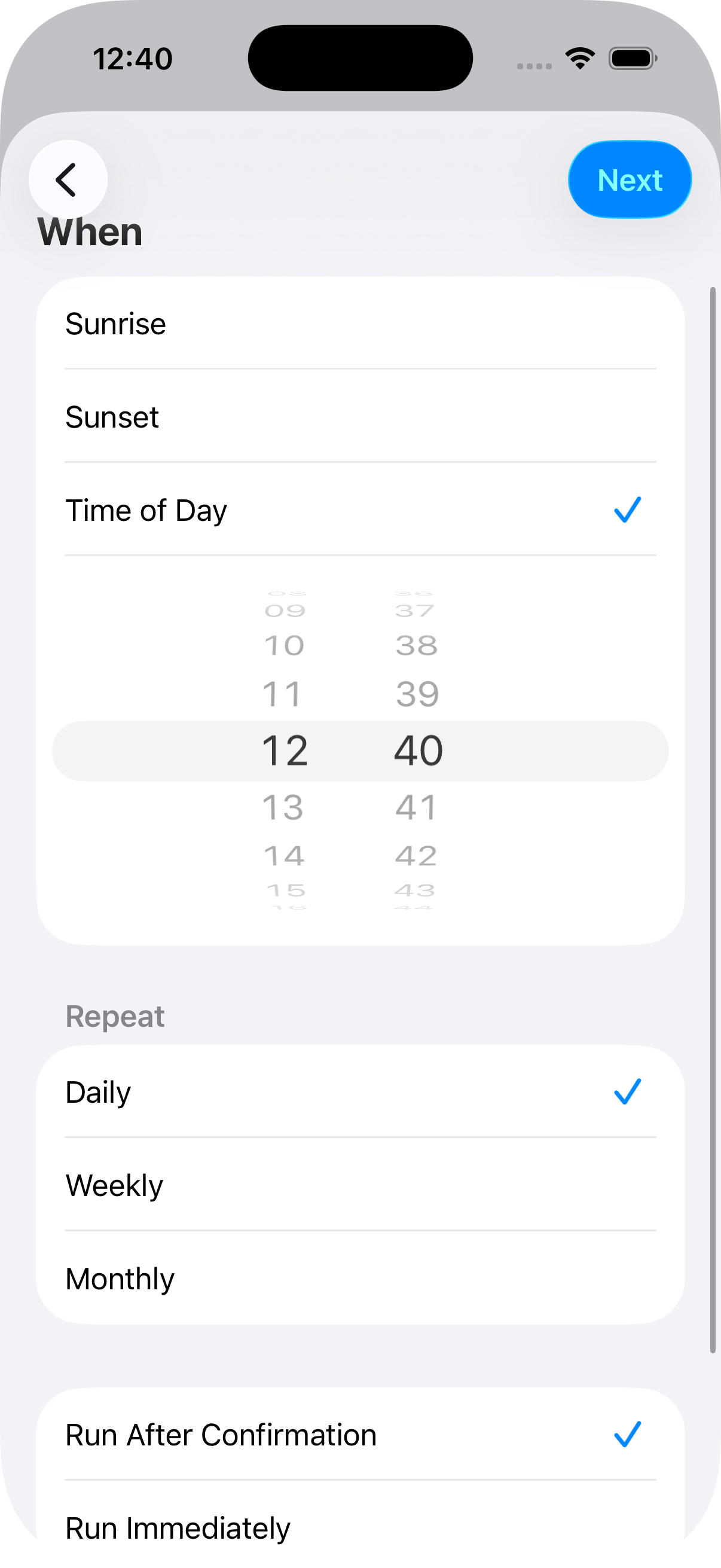
The following instructions are based on the latest iOS version at the time of writing (iOS 26).
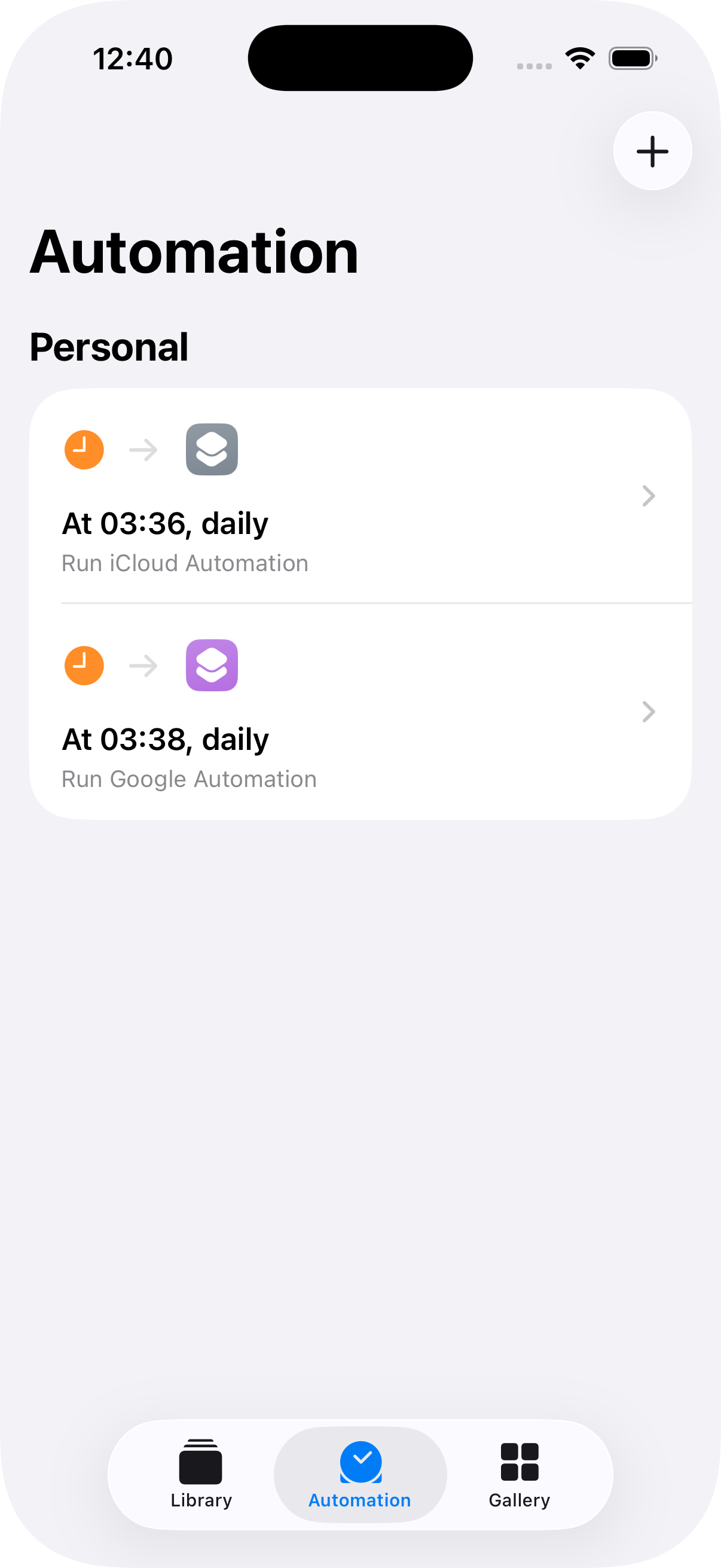
- Open the Shortcuts app.
- Select the Automation tab (bottom bar).
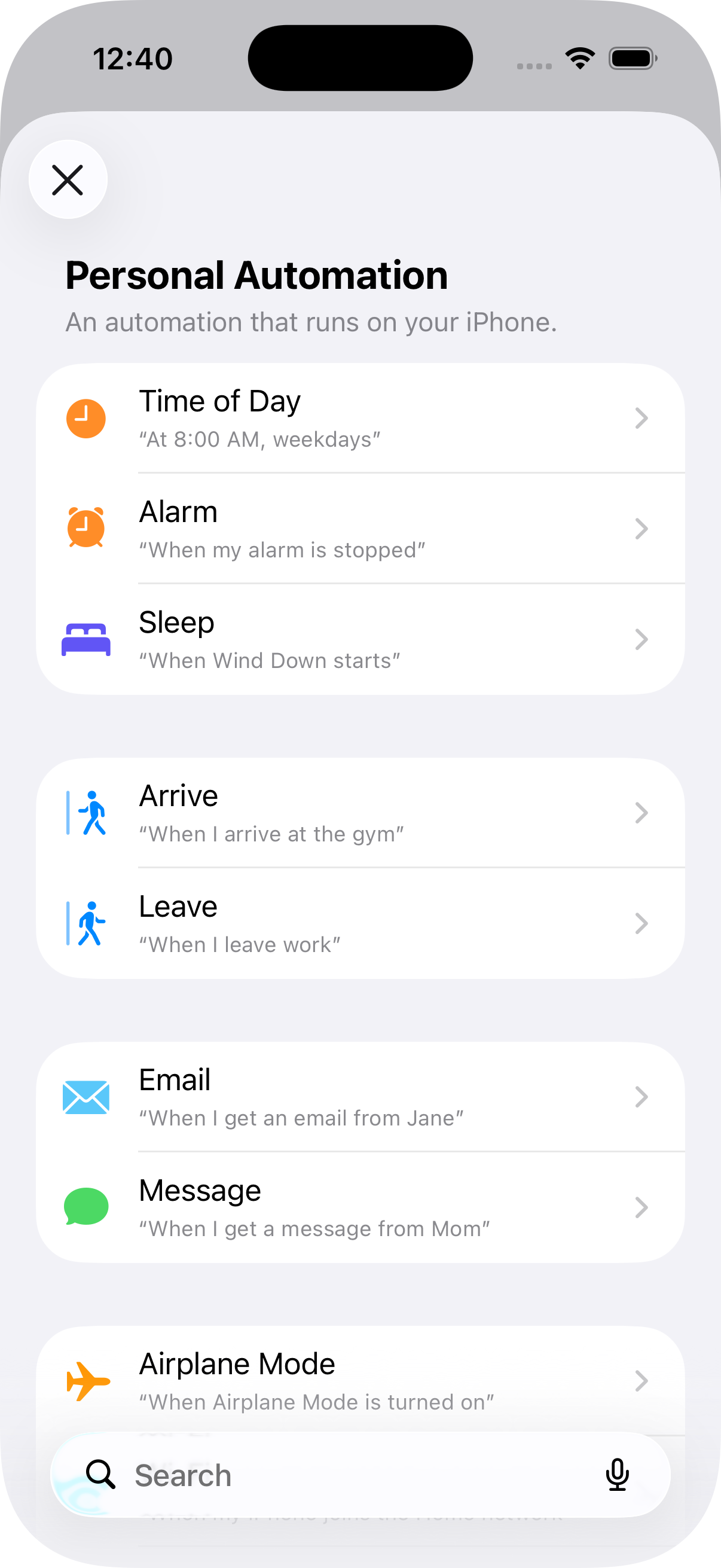
- Tap + to create a new personal automation, then choose Time of Day.
- Under Time of Day:
- Set the time you want (e.g. 8:00 AM).
- Choose Daily (or the repeat pattern you want).
- Recommendation: Select Run After Confirmation so you can run the shortcut after unlocking. The shortcut will fail if it runs while your phone is locked.
- Tap Next, then add the Run Shortcut action and select the shortcut you created in Build A Shortcut.
Your automation will now run at the scheduled time.
Tips
- Best time: Choose a time when your phone is usually unlocked (e.g. after you wake up) so the shortcut and health data access can run without issues.
- Multiple triggers: Create several personal automations (e.g. 8:00 AM and 8:00 PM) that each run the same shortcut if you want exports more than once a day.
- Testing: Run the shortcut manually from the Shortcuts app first to confirm the correct Health Auto Export automation runs and data appears at the destination.
- Notifications: In Health Auto Export, Notify When Run tells you after an automation runs. Schedule Reminders prompt you to open the app; they are not a run confirmation.
- Turn off Show When Run on the shortcut setting if you do not want to be notified by the shortcuts app when the action is triggered.
Other Triggers
Though this guide focuses on time-based triggers, Shortcuts supports other triggers, such as opening or closing an app, finishing a workout, or joining a network. Use other trigger types if they better fit your needs.
Related documentation
- Automations Overview – How automations work, Schedule Reminders, and their limitations.
- Set Up a Widget for Automations – Trigger automations from the Home Screen.