
Set Up a Widget for Automations
Add widgets to your Home Screen to optimize background uploads.
Last updated: August 23, 2026
On this page
- Overview
- Prerequisites
- Adding the Widget
- Step 1: Enter Edit Mode
- Step 2: Place Widget
- Configuring the Widget
- Selecting an Automation
- Understanding Widget Status
- Status Colors
- Status Icons
- Last Run Time
- Using the Widget
- Manual Trigger
- Widget Refresh
- Optimizing Background Uploads
- How Widget Helps
- Troubleshooting
- Common Issues
- Tips and Best Practices
- Getting Help
Automations Widget Setup Guide
Add the Automations Widget to your Home Screen to monitor automation status, manually trigger automations, and optimize background uploads.
Overview
The Automations Widget displays the status of your automations directly on your Home Screen. You can see sync status at a glance and manually trigger automations by tapping the center of the widget.
Benefits:
- Monitor automation status without opening the app
- Manually trigger automations quickly
- Optimize background uploads
- Quick access to automation controls
- Visual status indicators for sync state
Prerequisites
- At least one automation configured
- Premium subscription (widget requires premium access)
- Health data permission
- Other permissions that my be necessary specific to the automation type
Adding the Widget
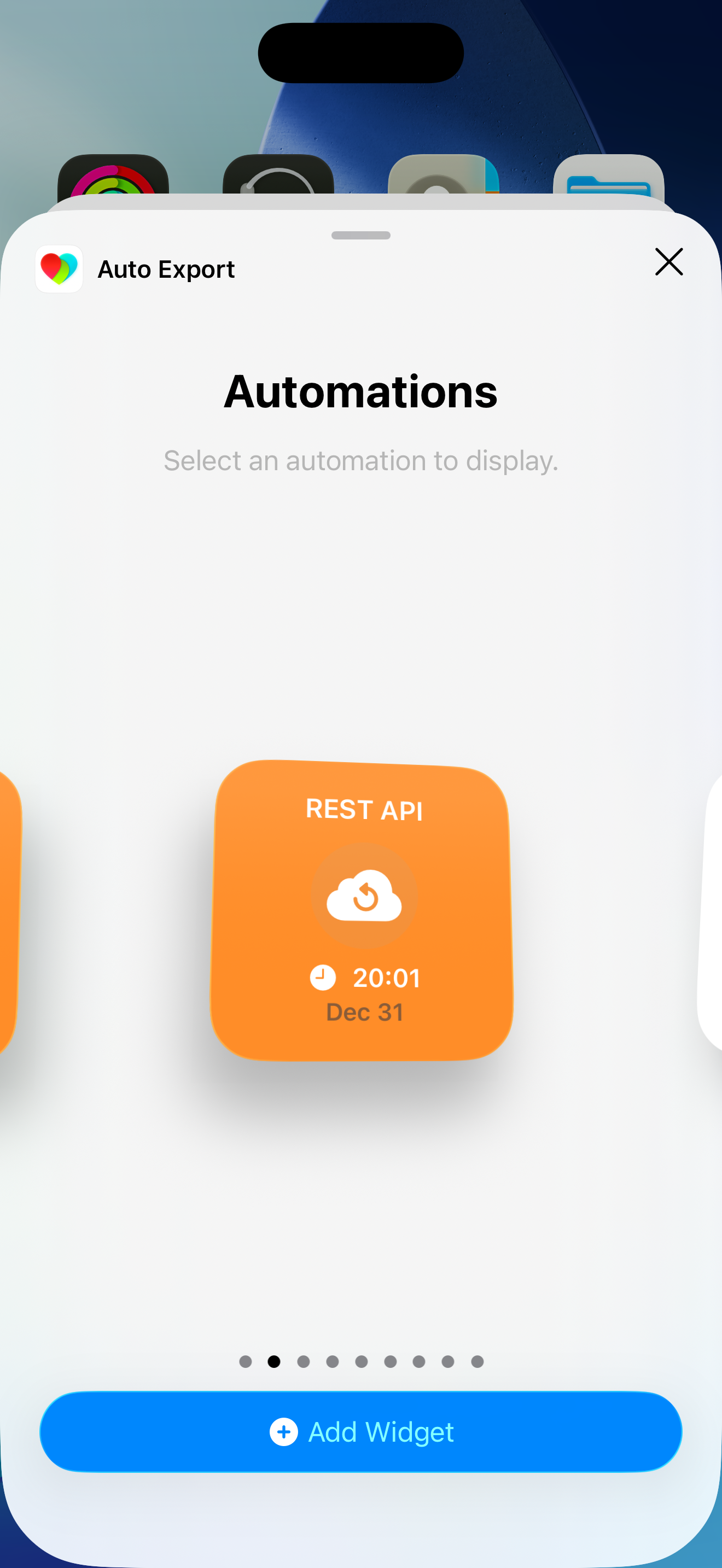
Step 1: Enter Edit Mode
- Long press on your Home Screen
- Tap the "+" button in the top left corner
Step 2: Place Widget
- In the widget gallery, search for "Auto Export"
- Or scroll to find "Auto Export" in the list
- Scroll to and select the "Automations" widget
- Tap "Add Widget" then drag the widget to your desired location
- Drag to place the widget. It is recommended you place the widget on the first page of your Home Screen.
Configuring the Widget
Selecting an Automation
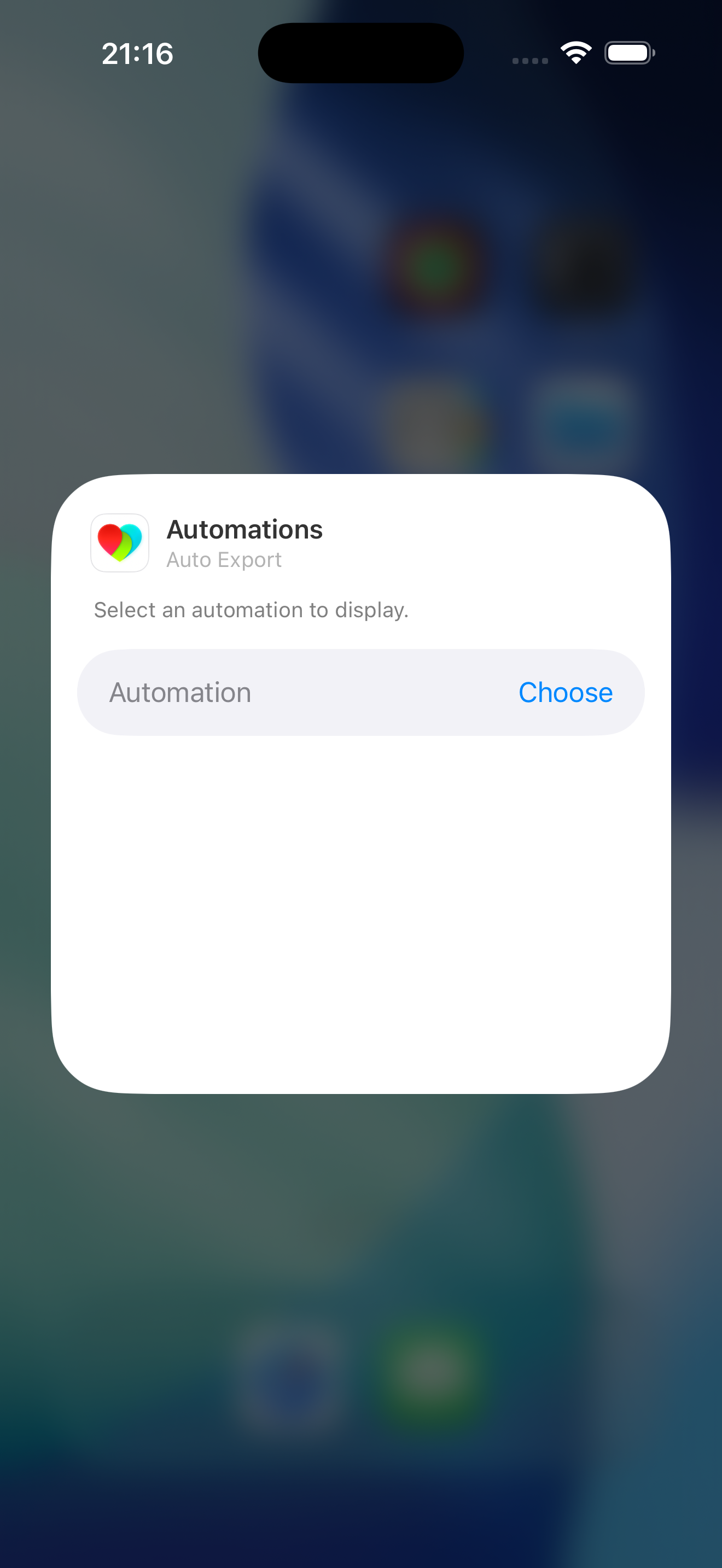
- Long press on the widget
- Tap "Edit Widget"
- Tap the widget configuration area
- Select which automation to display:
- Choose from your enabled automations
- By default the widget shows the first enabled automation
- Tap outside to save
Tip: The widget displays one automation at a time. Create multiple widgets if you want to monitor several automations simultaneously.
Understanding Widget Status
Status Colors
The widget background color indicates automation status:
- Green: Automation is synced and up to date
- Orange: Automation is enabled but needs to sync
- Gray: Automation is disabled or no automation selected
- Red: Premium access required or error state
Status Icons
The widget displays icons indicating status:
- Cloud with Checkmark: Automation is synced
- Cloud with Loading: Automation is syncing or needs to sync
- Cloud Disabled: No automation configured or automation disabled
- Lock: Premium access required
Last Run Time
The widget displays:
- Time: Last time the automation ran (hour:minute format)
- Date: Date of last run (month/day format)
- Clock Icon: Indicates the timestamp
Note: Since iOS limits how often widgets refresh, there may occassionally be a discrepancy between the date/time shown and the last run time.
Using the Widget
Manual Trigger
- Tap the cloud icon in the center of the widget
- The automation will start running
- Widget status updates to show syncing state
- Status changes to green when sync completes
Tapping the widget runs the automation. A Schedule Reminders notification opens the automation; use Open & Sync on that notification to run it. Notify When Run still tells you after a run completes.
Widget Refresh
The widget refreshes automatically:
- Approximately every 20 minutes by default
- When you tap to trigger an automation
- Based on iOS widget refresh schedule
Note: Widget refresh frequency depends on iOS system scheduling and may vary. Since the widget accesses health data, it will only refresh when your device is unlocked.
Optimizing Background Uploads
How Widget Helps
Having the widget on your Home Screen:
- Allows more frequent background task execution
- Improves automation sync reliability
- Reduces delays in automation execution
Troubleshooting
Common Issues
Widget Not Updating
- Wait for widget refresh cycle (up to 20 minutes)
- Tap the center of the widget to force a refresh
- Remove and re-add the widget
- Restart your device if issues persist
Status Always Orange
- Automation may need to sync
- Tap widget to trigger manual sync
- Check automation settings in app
- Verify automation is enabled and configured correctly
Tips and Best Practices
Automatic Syncing:
- Charge your device and use iPhone Mirroring
- When your device is being charged iOS places less restrictions on device performance, so data can sync more frequently
- By using iPhone Mirroring, your device behaves in the same way as if it were unlocked. This means health data is accessible by Health Auto Export in order to run automated actions
- Charge your device and use iPhone Mirroring
Widget Placement:
- Place on first Home Screen for easy access
- Consider multiple widgets for multiple automations
- Keep widget visible for so it updates
Background Optimization:
- Keep widget on Home Screen
- Don't remove widget unnecessarily
Multiple Automations:
- Create multiple widgets for different automations
Manual Triggers:
- Use widget for quick manual syncing
- Use when you notice data hasn't synced
Getting Help
If you need help with the widget:
- Review troubleshooting section
- Check automation configuration in app
- Verify premium subscription status
- Try removing and re-adding widget
- Contact support if issues persist